Timing Diagrams
Digital timing diagrams may be drawn using the schemdraw.logic.timing.TimingDiagram Element in the schemdraw.logic module.
Bit Field diagrams may be drawn using schemdraw.logic.bitfield.BitField.
Timing diagrams and bit fields are set up using the WaveJSON syntax used by the WaveDrom JavaScript application. Schemdraw adds a number of additional parameters to extend the configurability of WaveDrom.
Timing Diagrams
from schemdraw import logic
logic.TimingDiagram(
    {'signal': [
        {'name': 'A', 'wave': '0..1..01.'},
        {'name': 'B', 'wave': '101..0...'}]})
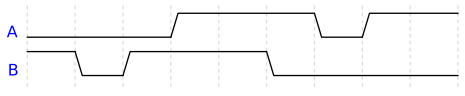
The input is a dictionary containing a signal, which is a list of each wave to show in the diagram. Each signal is a dictionary which typically contains a name and wave. An empty dictionary leaves a blank row in the diagram.
Every character in the wave specifies the state of the wave for one period. For example, the ‘1’ and ‘0’ in the above wave strings indicate a logic high and low signal. The dot . means the previous state is repeated.
Waveform Types
All the waveform types are shown below.
logic.TimingDiagram(
    {'signal':[
        {'name': 'n', 'wave': 'n.......'},
        {'name': 'p', 'wave': 'p.......'},
        {'name': 'N', 'wave': 'N.......'},
        {'name': 'P', 'wave': 'P.......'},
        {'name': 'c', 'wave': 'c.......'},
        {'name': 'C', 'wave': 'C.......'},
        {'name': '0, 1', 'wave': '0.1.0.1.'},
        {'name': 'l, L, h, H', 'wave': 'l.h.L.H.'},
        {'name': '2-9, x', 'wave': '23456789x', 'data': '2 3 4 5 6 7 8 9 x'},
        {'name': 'z', 'wave': '0.z....1'},
        {'name': 'W, w', 'wave': '0wW.w.W0'},
        {'name': 'd, u', 'wave': '1.d..u..'},
        {'name': 'Q, b', 'wave': 'Q..0.bbb'},
    ]}
)
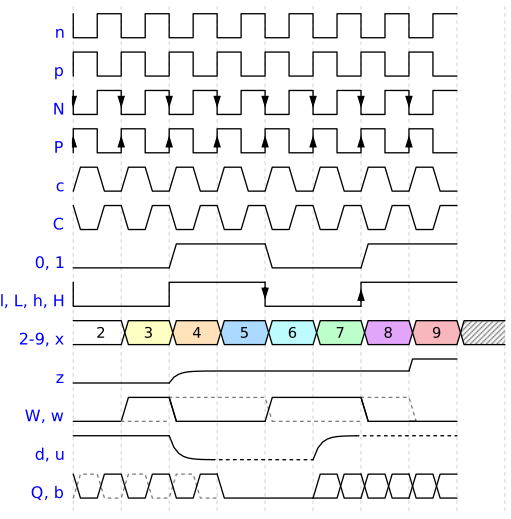
Wave Type |
Description |
|---|---|
n |
Clock signal |
n |
Clock signal |
p |
Inverted clock signal |
N |
Clock signal with arrows |
P |
Inverted clock signal with arrows |
c, C [1] |
Clock signals with rise time |
0 |
Low state, with rise time |
1 |
High state, with rise time |
l |
Low state, no rise time |
h |
High state, no rise time |
L |
Low state with arrow |
H |
High state with arrow |
2-9 |
Data states, with different colors |
x |
Invalid or don’t-care data state |
z |
High impedance state, halfway up |
d |
Low state with pull-down curve |
u |
High state with pull-up curve |
Q, q [1] |
Differential clock |
W, w [1] |
Differential signal |
b [1] |
Half-period bit state |
e [1] |
Empty state |
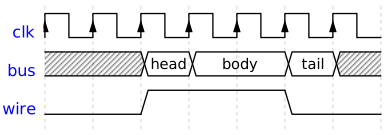
Example:
logic.TimingDiagram(
    {'signal': [
        {'name': 'clk', 'wave': 'P......'},
        {'name': 'bus', 'wave': 'x.==.=x', 'data': ['head', 'body', 'tail']},
        {'name': 'wire', 'wave': '0.1..0.'}]})
Signal Parameters
In addition to wave, each signal row has a number of parameters.
name: Text to show to the left of the signal
- data: Value to display inside data wave types. May be:
List of strings, one item per data block
Space separated string
String in the format {0, 1}, where the values 0 and 1 are repeated through the signal [1]
node: Define nodes for drawing arrows. See Nodes and Edges.
nodealign: Alignment of nodes, either signal or clock. See Nodes and Edges. [1]
phase: Introduce horizontal phase shift, as fraction of the period.
risetime: Rise/fall time for signal types 0-9 and x in drawing units (default 0.1). [1]
period: Change the period of the signal (default: 1)
level: String with same length as wave defining the maximum y-value. See Variable Voltage Levels. [1]
color: Color of the wave
lw: Line width of the wave [1]
fontsize: Fontsize of data labels [1]
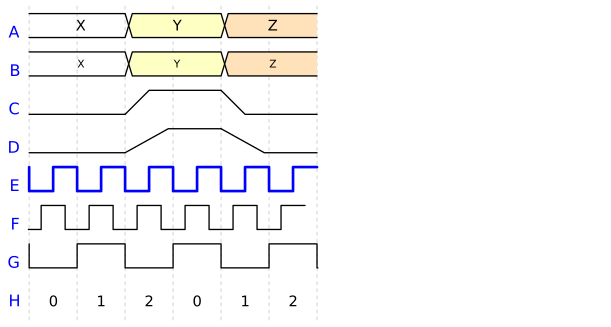
Examples of some parameters are shown below. Note ‘wave’ may be omitted to only display data text.
logic.TimingDiagram(
    {'signal':[
        {'name': 'A', 'wave': '2.3.4.', 'data': 'X Y Z'},
        {'name': 'B', 'wave': '2.3.4.', 'data': 'X Y Z', 'fontsize': 8},
        {'name': 'C', 'wave': '0.1.0.', 'risetime': 0.5},
        {'name': 'D', 'wave': '0.1.0.', 'risetime': 0.9},
        {'name': 'E', 'wave': 'n.....', 'color': 'blue', 'lw': 2},
        {'name': 'F', 'wave': 'n.....', 'phase': 0.25},
        {'name': 'G', 'wave': 'n.....', 'period': 2},
        {'name': 'H', 'data': '{0, 1, 2}'},
    ]}
)
Signal Groups
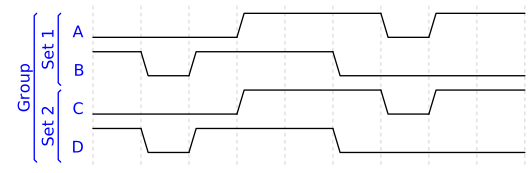
Signals may also be nested into different groups:
logic.TimingDiagram(
    {'signal': ['Group',
      ['Set 1',
        {'name': 'A', 'wave': '0..1..01.'},
        {'name': 'B', 'wave': '101..0...'}],
      ['Set 2',
        {'name': 'C', 'wave': '0..1..01.'},
        {'name': 'D', 'wave': '101..0...'}]
               ]})
Nodes and Edges
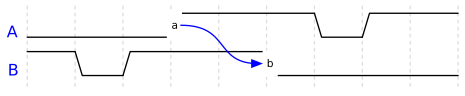
The node keyword may be added to signals to define edge positions and labels within the wave. Within the node string, a lowercase letter indicates a node to be drawn on the wave. An uppercase letter defines a position without being drawn. A period leaves the position undefined.
Once nodes are defined, the edge parameter in the top-level dictionary provides a way to annotate transitions between different edges. The edge parameter is a list of strings, each defining an annotation. Each string starts and ends with a node letter, with a line type between. For example, “a->b” draws an arrow pointing from node a to b, and “c-d” draws a straight line from node c to d.
logic.TimingDiagram(
    {'signal': [
        {'name': 'A', 'wave': '0..1..01.', 'node': '...a.....'},
        {'name': 'B', 'wave': '101..0...', 'node': '.....b...'}],
     'edge': ['a~>b']
    })
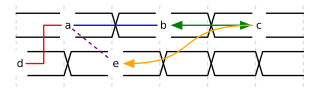
Line and arrow types include:
-: Straight line
-> or <- or <->: Straight line with arrow heads
|-: Vertical then horizontal straight line
-|: Horizontal then vertical straight line
-|-: “Z” shape line
~ or -~ or ~-: Various curved lines. May include arrow heads with ‘>’ or ‘<’.
Colors may be specified placing the color in braces after the edge string. A linestyle of ‘:’ or ‘–’ may be added after the color, separated by a comma. Edge types are illustrated below.
logic.TimingDiagram(
    {'signal':[
        {'wave': '222222', 'node': '.a.b.c'},
        {'wave': '222222', 'node': 'd.e...'},
    ],
    'edge': [
        'a-b',
        'b<->c{green}',
        'd-|-a{red}',
        'a-e{purple,:}',
        'e<~c{orange}',
    ]}
)
Extended Edge Notation
Schemdraw adds additional “edge” string notations for more complex labeling of edge timings, including asynchronous start and end times and labels just above or below a wave [1].
Each edge string using this syntax takes the form
'[WaveNum:Period]<->[WaveNum:Period]{color,ls} Label'
Everything after the first space will be drawn as the label in the center of the line. The values in square brackets designate the start and end position of the line. WaveNum is the integer row number (starting at 0) of the wave, and Period is the possibly fractional number of periods in time for the node. WaveNum may be appended by a ^ or v to designate notations just above, or just below, the wave, respectively.
Between the two square-bracket expressions is the standard line/arrow type designator. In optional curly braces, the line color and linestyle may be entered.
Some examples are shown here:
logic.TimingDiagram(
    {'signal': [
        {'name': 'A', 'wave': 'x3...x'},
        {'name': 'B', 'wave': 'x6.6.x'}],
     'edge': ['[0^:1]+[0^:5] $t_1$',
              '[1^:1]<->[1^:3] $t_o$',
              '[0^:3]-[1v:3]{gray,:}',
             ]},
    ygap=.5, grid=False)
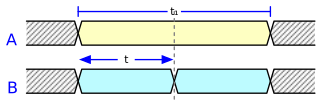
When placing edge labels above or below the wave, it can be useful to add the ygap parameter to TimingDiagram to increase the spacing between waves.
By default, nodes are aligned with the end of the risetime of a signal. To shift the node to the clock edge, set the nodealign parameter to ‘clock’. The following examples show the difference.
logic.TimingDiagram(
    {'signal':[
        {'wave': '222222'},
        {'wave': '222222'},
    ],
    'edge': [
        '[0^:1]-[1v:1]{red}',
    ]},
    risetime=.3
)
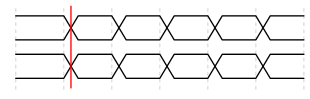
logic.TimingDiagram(
    {'signal':[
        {'wave': '222222'},
        {'wave': '222222'},
    ],
    'edge': [
        '[0^:1]-[1v:1]{red}',
    ]},
    risetime=.3, nodealign='clock'
)
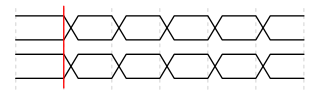
See the Timing Diagrams Gallery for more examples.
Variable Voltage Levels
Another Schemdraw extension [1] adds adjustable voltage levels within a signal using the level parameter. The value can take 10 different values, specified as digits in the level string, where a 1 corresponds to 10%, 2 to 20%, etc., with 0 meaning 100% of the normal high voltage level. As with the wave parameter, a period is used to repeat the previous level value. The level parameter only applies to wave type 1.
Here, the first pulse is 100%, the second at 50%, and the third at 20%.
logic.TimingDiagram(
    {'signal': [
        {'wave':  '0.1..0.1.0.1.',
         'level': '0......5...2.',
        }],
    })

Asynchronous Signals
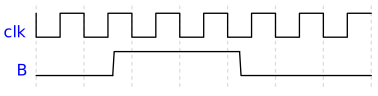
WaveDrom does not have a means for defining asynchronous signals - all waves must transition on period boundaries. Schemdraw adds asyncrhonous signals using the async parameter, as a list of period multiples for each transition in the wave. Note the beginning and end time of the wave must also be specified, so the length of the async list must be one more than the length of wave.
logic.TimingDiagram(
    {'signal': [
        {'name': 'clk', 'wave': 'n......'},
        {'name': 'B', 'wave': '010', 'async': [0, 1.6, 4.25, 7]}]},
    risetime=.03)
Shading
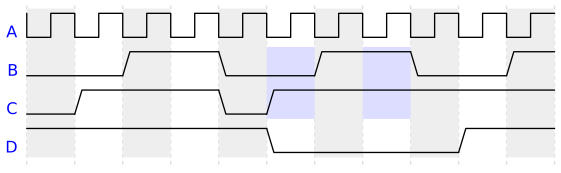
Shading may be added to phases using the shade key in the top-level dictionary [1]. Each item in the shade list is a string with the format
'Phases Signals Color'
The Phases parameter may be ‘even’ or ‘odd’, to shade every other phase, or it may be a comma-separated list of phase numbers, such as ‘1,3’ to shade the first and third columns (starting at 0). The Signals parameter may be an asterisk * to shade every signal row, or it may be the first and last rows separated by a colon, for example “1:3” shades the first through third signal rows.
logic.TimingDiagram(
    {"signal": [
        {"name": "A", "wave": "n.........."},
        {"name": "B", "wave": "0.1.0.1.0.1"},
        {"name": "C", "wave": "01..01....."},
        {"name": "D", "wave": "1....0...1."},
    ],
    "shade": [
        "even * #eee",
        "5,7 1:2 #ddf",
    ]
    })
Titles
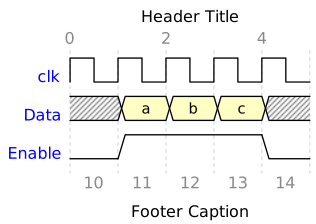
The head and foot dictionaries define items to display above and below the diagram, respectively. Titles or captions are added using the text key. Phases may be numbered using either tick, to number phases at the clock edge, or tock to number phases at their center, providing the starting value of the first phase. The every key defines which phases to number.
logic.TimingDiagram({
    'signal': [
        {'name': 'clk',    'wave': 'p....' },
        {'name': 'Data',   'wave': 'x333x', 'data': 'a b c' },
        {'name':' Enable', 'wave': '01..0' }
    ],
    'head': {
        'text': 'Header Title',
        'tick': 0,
        'every': 2
    },
    'foot': {
        'text': 'Footer Caption',
        'tock': 10
    },
})
Configuration
The config key provides a dictionary with hscale, which may be used to change the width of one period in the diagram:
logic.TimingDiagram(
    {'signal': [
        {'name': 'clk', 'wave': 'P......'},
        {'name': 'bus', 'wave': 'x.==.=x', 'data': ['head', 'body', 'tail']},
        {'name': 'wire', 'wave': '0.1..0.'}],
     'config': {'hscale': 2}})

Other diagram-level configuration options are specified directly as keyword arguments [1]. These may be overridden by values provided on specific signals.
yheight: Height of one waveform
ygap: Separation between two waveforms
risetime: Rise/fall time for wave transitions
fontsize: Size of label fonts
datafontsize: Size of data font
nodesize: Size of node labels
namecolor: Color for wave names
datacolor: Color for wave data text
nodecolor: Color for node text
gridcolor: Color of background grid
edgecolor: Color of edge notations (default blue)
tickcolor: Color of tick/tock labels in head/foot
grid: Enable grid lines (default True)
Using JSON
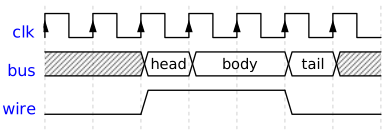
Because the examples from WaveDrom use JavaScript and JSON, they sometimes cannot be directly pasted into Python as dictionaries.
The schemdraw.logic.timing.TimingDiagram.from_json() method allows input of the WaveJSON as a string pasted directly from the Javascript/JSON examples without modification.
Notice lack of quoting on the dictionary keys, requiring the from_json method to parse the string.
logic.TimingDiagram.from_json('''{ signal: [
  { name: "clk",  wave: "P......" },
  { name: "bus",  wave: "x.==.=x", data: ["head", "body", "tail", "data"] },
  { name: "wire", wave: "0.1..0." }
]}''')
Note
TimingDiagram is an Element, meaning it may be added to a schemdraw Drawing with other schematic components. To save a standalone TimingDiagram to an image file, first add it to a drawing, and save the drawing:
with schemdraw.Drawing(file='timing.svg'):
    logic.TimingDiagram(
        {'signal': [
            {'name': 'A', 'wave': '0..1..01.'},
            {'name': 'B', 'wave': '101..0...'}]})
Bit Field Diagrams
Bit Field diagrams may be drawn using schemdraw.logic.bitfield.BitField.
They work similar to timing diagrams, with a single parameter dictionary defining the element, which may also be supplied in a from_json class method.
logic.BitField(
    {'reg': [
        { "name": "IPO",   "bits": 8, "attr": "RO" },
        {                  "bits": 7 },
        { "name": "BRK",   "bits": 5, "attr": "RW", "type": 4 },
        { "name": "CPK",   "bits": 2 },
        { "name": "Clear", "bits": 3 },
        { "bits": 8 }
    ],
    }
)

The dictionary passed to BitField may have two keys: reg and config. The reg key is a list of bit groups within the register. Each item in the list may have attributes:
name: Text to display within the bit group
bits: Number of bits within the group
attr: Label to show below the group. May be a string, or integer. If integer, the binary representation is shown. May also be a list of multiple lines.
type: 0-9 color code to fill the bit group. Or may be any valid color string.
- Schemdraw adds these parameters not available in the original WaveDrom:
scale: Scale factor for bit width in the group
number: Show first and last bit numbers above the group
- The config dictionary may include these key-value pairs:
lanes: Number of lanes
hflip: Reverse order of lanes
vflip: Reverse order of bits
compact: Remove whitespace between lanes
bits: Total number of bits to include (padded out if not included in the reg list)
label: Dictionary of either ‘left’ or ‘right’ and text to display left or right of the lanes.
Additional parameters may be passed directly to BitField. Values in the config dictionary above take precedence.
bitheight: Height of a bit register box in drawing units
width: Full width of the register box in drawing units
fontsize: Size of all text labels
lw: Line width for borders
ygap: Distance between lanes. Omit to auto-space based on label heights
vflip: Flip order of bits
hflip: Flip order of lanes
compact: Remove whitespace between lanes
Schemdraw’s implementation has these known differences compared to WaveDrom:
‘type’ parameter, which is used to specify a fill color, can be the 0-9 code as in WaveDrom, or any valid color string
hspace defines the full width of the register in pixels, without including any labels
vspace defines the full width of a register in pixels, without including any labels or padding
margins are ignored (but can be set by adding the BitField to a schemdraw Drawing)
Examples are below, many borrowed from here.
logic.BitField.from_json(r'''
{reg:[
    {name: 'OP-IMM-32', bits: 7,  attr: 0b0011011},
    {name: 'rd',     bits: 5,  attr: 0},
    {name: 'func3',  bits: 3,  attr: ['SLLIW', 'SRLIW', 'SRAIW']},
    {bits: 10},
    {name: 'imm?',   bits: 7, attr: [0, 32, 32]}
]}
'''
)

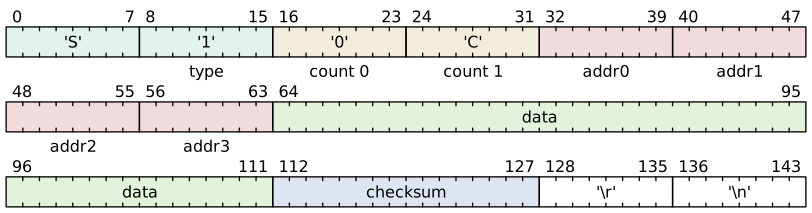
logic.BitField.from_json(r'''
{reg: [
{bits: 8, name: "'S'", type: 4},
{bits: 8, name: "'1'", type: 4, attr: 'type'},
{bits: 8, name: "'0'", attr: 'count 0', type: 5},
{bits: 8, name: "'C'", attr: 'count 1', type: 5},
{bits: 8, attr: 'addr0', type: 2},
{bits: 8, attr: 'addr1', type: 2},
{bits: 8, attr: 'addr2', type: 2},
{bits: 8, attr: 'addr3', type: 2},
{bits: 48, name: 'data', type: 6},
{bits: 16, name: 'checksum', type: 7},
{bits: 8, name: "'\\r'"},
{bits: 8, name: "'\\n'"},
], config: {hspace: 800, lanes: 3, bits: 144, vflip: true, hflip: true}}
'''
)
logic.BitField.from_json('''
{'reg': [
    {'name': '0x3',   'bits': 7,  attr: 'CMD' },
    {'name': '0x001', 'bits': 1,  attr: 'REC', scale: 3 },
    {'name': 'OP_T',  'bits': 8,  attr: 'OP_T' },
    {'name': '0x0',   'bits': 13, attr: 'ARG_POINTER', scale: .5, number: false },
    {'name': '0x2',   'bits': 3,  attr: 'MODE' },
],
}
''')
