Placing Elements
Elements instantiated insde a with block are automatically added to the Drawing. The Drawing maintains a current position and direction, such that the default placement of the next element will start at the end of the previous element, going in the same direction.
with schemdraw.Drawing():
    elm.Capacitor()
    elm.Resistor()
    elm.Diode()

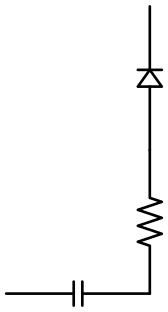
If a direction method (up, down, left, right) is added to an element, the element is rotated in that direction, and future elements take the same direction:
with schemdraw.Drawing():
    elm.Capacitor()
    elm.Resistor().up()
    elm.Diode()
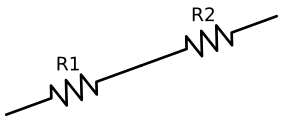
The theta method can be used to specify any rotation angle in degrees.
with schemdraw.Drawing():
    elm.Resistor().theta(20).label('R1')
    elm.Resistor().label('R2')  # Takes position and direction from R1
Anchors and Positioning
All elements have a set of predefined anchor positions within the element. For example, a bipolar transistor has base, emitter, and collector anchors. All two-terminal elements have anchors named start, center, and end. Anchor names are shown for each element in Circuit Elements. They are also listed in the docstring for each element.
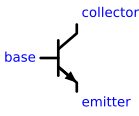
Once an element is added to the drawing, all its anchor positions will be added as attributes to the element object, so the base position of transistor assigned to variable Q may be accessed via Q.base. Alternatively, anchor positions may be accessed using brackets: Q[‘base’]. This option is useful when anchors are generated that are not valid Python identifiers, for example when the anchor name may contain a dot or other symbol. The returned position is relative to the drawing origin, and will only be accessible once an element is placed in a drawing.
The element’s anchors attribute contains a dictionary of all anchors relative to the element’s origin and can be accessed before placement.
At Method
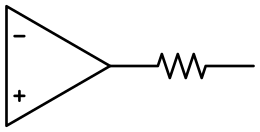
To place an element at a specific location connected to another element, use the at method. For example, to draw an opamp and place a resistor on its output, store the Opamp instance to a variable. Then call the at method of the new element passing the Opamp.out anchor. After the resistor is drawn, the current drawing position is moved to the endpoint of the resistor.
with schemdraw.Drawing():
    opamp = elm.Opamp()
    elm.Resistor().right().at(opamp.out)
Alignment
Anchors are also used to align new elements with respect to existing elements.
Suppose a resistor has just been placed, and now an Opamp should be connected to the resistor.
The schemdraw.elements.Element.anchor() method tells the Drawing which anchor on the Opamp should align with resistor.
Here, an Opamp is placed at the end of a resistor, connected to the opamp’s in1 anchor (the inverting input).
with schemdraw.Drawing():
    elm.Resistor().label('R1')
    elm.Opamp().anchor('in1')  # Place the `in1` anchor at the current drawing position
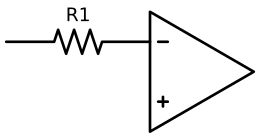
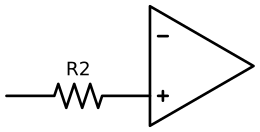
Compared to anchoring the opamp at in2 (the noninverting input):
with schemdraw.Drawing():
    elm.Resistor().label('R2')
    elm.Opamp().anchor('in2')  # Place the `in2` anchor at the current drawing position
Hold method
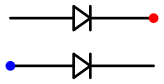
To place an element without moving the drawing position, use the element’s schemdraw.elements.Element.hold() method. The element will be placed without changing the drawing state.
with schemdraw.Drawing() as d:
    elm.Diode()  # Normal placement: drawing position moves to end of element
    elm.Dot().color('red')

    d.move(dx=-d.unit, dy=-1)
    elm.Diode().hold()  # Hold method prevents position from changing
    elm.Dot().color('blue')
Drop Method
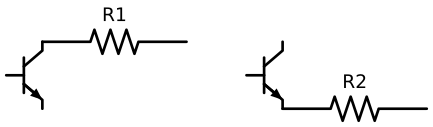
Some elements, especially those with more than 2 terminals, do not necessarily leave the drawing position where desired,
so after drawing an element, the current drawing position can be set using the schemdraw.elements.Element.drop()
method to specify the anchor at which to leave the drawing cursor.
with schemdraw.Drawing() as d:
    bjt1 = elm.BjtNpn()
    elm.Resistor().label('R1')  # Default cursor placement after placing BJT

    d.move_from(bjt1.base, dx=5)
    bjt2 = elm.BjtNpn().drop('emitter')  # Leave the cursor on the emitter after placing BJT
    elm.Resistor().label('R2')
Drawing State
The schemdraw.Drawing maintains a drawing state that includes the current x, y position, stored in the Drawing.here attribute as a (x, y) tuple, and drawing direction stored in the Drawing.theta attribute.
The schemdraw.Drawing.hold() method returns a context manager that saves the drawing state to a LIFO stack,
with the state restored when the context manager exits.
with schemdraw.Drawing() as d:
    elm.Inductor()
    elm.Dot()
    print('d.here:', d.here)
    with d.hold():  # Save this drawing position/direction for later
        elm.Capacitor().down(1.5)  # Go off in another direction temporarily
        elm.Ground(lead=False)
        print('d.here:', d.here)

    print('d.here:', d.here)   # Drawing state restored when the with-block exits
    elm.Diode()
d.here: Point(3.0,0.0)
d.here: Point(2.9999999999999996,-1.5)
d.here: Point(3.0,0.0)
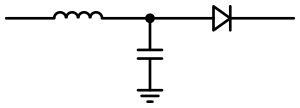
Alternatively, the schemdraw.Drawing.push() and schemdraw.Drawing.pop() methods work in the same way without the context manager.
Changing the drawing position can be accomplished by calling schemdraw.Drawing.move() or schemdraw.Drawing.move_from().
Dimensions
The inner zig-zag portion of a resistor has length of 1 unit, while the default lead extensions are 1 unit on each side, making the default total resistor length 3 units. Placement methods such as at and to accept a tuple of (x, y) position in these units.
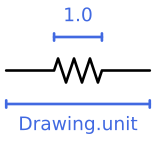
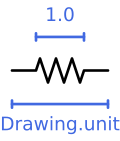
This default 2-terminal length can be changed using the unit parameter to the schemdraw.Drawing.config() method:
with schemdraw.Drawing() as d:
    d.config(unit=2)
    ...
Two-Terminal Elements
In Schemdraw, a “Two-Terminal Element” is any element that can grow to fill a given length (this includes elements such as the Potentiometer, even though it electrically has three terminals).
All two-terminal elements subclass schemdraw.elements.Element2Term.
They have some additional methods for setting placement and length.
The length method sets an exact length for a two-terminal element. Alternatively, the up, down, left, and right methods on two-terminal elements take a length parameter.
with schemdraw.Drawing() as d:
    elm.Dot()
    elm.Resistor()
    elm.Dot()
    elm.Diode().length(6)
    elm.Dot()

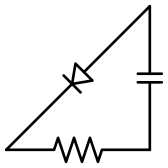
The to method will set an exact endpoint for a 2-terminal element. The starting point is still the ending location of the previous element. Notice the Diode is stretched longer than the standard element length in order to fill the diagonal distance.
with schemdraw.Drawing() as d:
    R = elm.Resistor()
    C = elm.Capacitor().up()
    Q = elm.Diode().to(R.start)
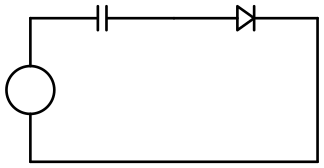
The tox and toy methods are useful for placing 2-terminal elements to “close the loop”, without requiring an exact length. They extend the element horizontally or vertically to the x- or y- coordinate of the anchor given as the argument. These methods automatically change the drawing direction. Here, the Line element does not need to specify an exact length to fill the space and connect back with the Source.
with schemdraw.Drawing():
    C = elm.Capacitor()
    elm.Diode()
    elm.Line().down()

    # Now we want to close the loop, but can use `tox`
    # to avoid having to know exactly how far to go.
    # The Line will extend horizontally to the same x-position
    # as the Capacitor's `start` anchor.
    elm.Line().tox(C.start)

    # Now close the loop by relying on the fact that all
    # two-terminal elements (including Source and Line)
    # are the same length by default
    elm.Source().up()
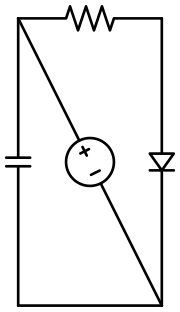
Finally, exact endpoints can also be specified using the endpoints method.
with schemdraw.Drawing():
    R = elm.Resistor()
    Q = elm.Diode().down(6)
    elm.Line().tox(R.start)
    elm.Capacitor().toy(R.start)
    elm.SourceV().endpoints(Q.end, R.start)
Two-terminal elements are centered between their endpoints. Occasionally, it is useful to place them off-center. Use the shift method with a value between -1 and 1 to shift the element to one side.
with schemdraw.Drawing():
    elm.Resistor().shift(-0.4).dot()
    elm.Resistor().shift(0.75)

Orientation
The flip and reverse methods change orientation of directional elements such as Diodes, but they do not affect the drawing direction.
with schemdraw.Drawing():
    elm.Zener().label('Normal')
    elm.Zener().flip().label('Flip')
    elm.Zener().reverse().label('Reverse')

Connecting Elements
Typically, the schemdraw.elements.lines.Line element is used to connect elements together.
More complex line routing requires multiple Line elements.
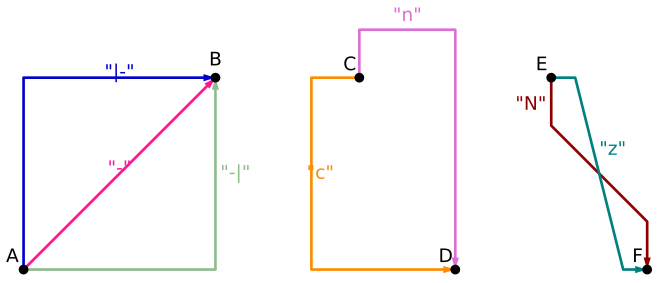
The schemdraw.elements.lines.Wire element is used as a shortcut for placing multiple connecting lines at once.
The Wire element connects the start and end points based on its shape parameter.
The k parameter is used to set the distance before the wire first changes direction.
Shape Parameter |
Description |
|---|---|
|
Direct Line |
|
Horizontal then vertical |
|
Vertical then horizontal |
|
Vertical-horizontal-vertical (like an n or u) |
|
Horizontal-vertical-horizontal (like a c or ↄ) |
|
Horizontal-diagonal-horizontal |
|
Vertical-diagonal-vertical |
elm.Wire('-', arrow='->').at(A.center).to(B.center).color('deeppink').label('"-"')
elm.Wire('|-', arrow='->').at(A.center).to(B.center).color('mediumblue').label('"|-"')
elm.Wire('-|', arrow='->').at(A.center).to(B.center).color('darkseagreen').label('"-|"')
elm.Wire('c', k=-1, arrow='->').at(C.center).to(D.center).color('darkorange').label('"c"', halign='left')
elm.Wire('n', arrow='->').at(C.center).to(D.center).color('orchid').label('"n"')
elm.Wire('N', arrow='->').at(E.center).to(F.center).color('darkred').label('"N"', 'start', ofst=(-.1, -.75))
elm.Wire('z', k=.5, arrow='->').at(E.center).to(F.center).color('teal').label('"z"', halign='left', ofst=(0, .5))
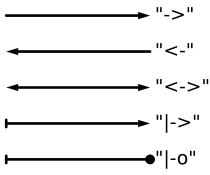
Both Line and Wire elements take an arrow parameter, a string specification of arrowhead types at the start and end of the wire. The arrow string may contain “<”, “>”, for arrowheads, “|” for an endcap, and “o” for a dot. Some examples are shown below:
with schemdraw.Drawing():
    elm.Line(arrow='->').label('"->"', 'right')
    elm.Line(arrow='<-').at((0, -.75)).label('"<-"', 'right')
    elm.Line(arrow='<->').at((0, -1.5)).label('"<->"', 'right')
    elm.Line(arrow='|->').at((0, -2.25)).label('"|->"', 'right')
    elm.Line(arrow='|-o').at((0, -3.0)).label('"|-o"', 'right')
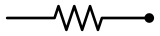
Because dots are used to show connected wires, all two-terminal elements have dot and idot methods for quickly adding a dot at the end or beginning of the element, respectively.
elm.Resistor().dot()
Keyword Arguments
All schemdraw.elements.Element types take keyword arguments that can also be used to set
element properties, partly for historical reasons but also for easy element setup via dictionary unpacking.
The keyword arguments are equivalent to calling the Element setup methods.
The keyword arguments are not validated or type checked, so the chained method interface
described above is recommended for configuring elements.
Keyword Argument |
Method Equivalent |
|---|---|
d=’up’ |
.up() |
d=’down’ |
.down() |
d=’left’ |
.left() |
d=’right’ |
.right() |
theta=X |
.theta(X) |
at=X or xy=X |
.at(X) |
flip=True |
.flip() |
reverse=True |
.reverse() |
anchor=X |
.anchor(X) |
zoom=X |
.scale(X) |
color=X |
.color(X) |
fill=X |
.fill(X) |
ls=X |
.linestyle(X) |
lw=X |
.linewidth(X) |
zorder=X |
.zorder(X) |
move_cur=False |
.hold() |
label=X |
.label(X) |
botlabel=X |
.label(X, loc=’bottom’) |
lftlabel=X |
.label(X, loc=’left’) |
rgtlabel=X |
.label(X, loc=’right’) |
toplabel=X |
.label(X, loc=’top’) |
lblloc=X |
.label(…, loc=X) |